
Overview
Thank you for downloading Atrio Admin Template. If you have any queries which can not solve using this document, feel free to email me. I'll happy to help you.
- Item Name : Atrio - Bootstrap 4 Admin Dashboard Template
- Item Version : v 1.0.0
- created: 08/02/2019
- latest update: 08/02/2019
- by: RedStarTheme
- email: redstartheme@gmail.com
Introductions
Atrio Admin is a fully responsive admin template based on bootstrap 4 version. It is fully responsive built using SASS preprocessor, HTML5, CSS3 and jQuery plugins. Atrio have also Material Design components, which you can use in your application. It works natively on mobile devices, making it an accessible way of managing your own website from wherever you are.
Atrio Admin comes with many example pages with many ready to use components and easy to customize. Atrio offers multiple theme options, you can chose as per your choice.
This documentation will guide you through installing the template and exploring the various components that are bundled with the template.
Dependencies
Installation
Installation Guide
After download package you can find pre build app folder in
Atrio/light or Atrio/dark packages. Choose your desire template and you just need
to copy and paste app folder in your desire location.
Prerequisite
- Node.js and NPM : You can download Node.js from https://nodejs.org. NPM comes bundled with Node.js.
- Install gulp locally : You can install gulp in local machine
by executing from your terminal
npm install gulp -g. - Install dependency : After installing Node, npm and gulp run
npm installcommand from the root of your project directory into terminal. It will install all the necessary dependencies for the application using package.json file. - Build : Run
gulpcommand from project directory to build the project. All require files are compile and place in /app directory. - Just copy and paste app folder in your location. That's it!!!
Folder Structure
Atrio/
├── app/
│   ├── assets/
│   ├── pages/
│   ├── index.html/
├── scss/
│   ├── .scss files/
├── gulpfile.js/
├── package.json/
Template Structure
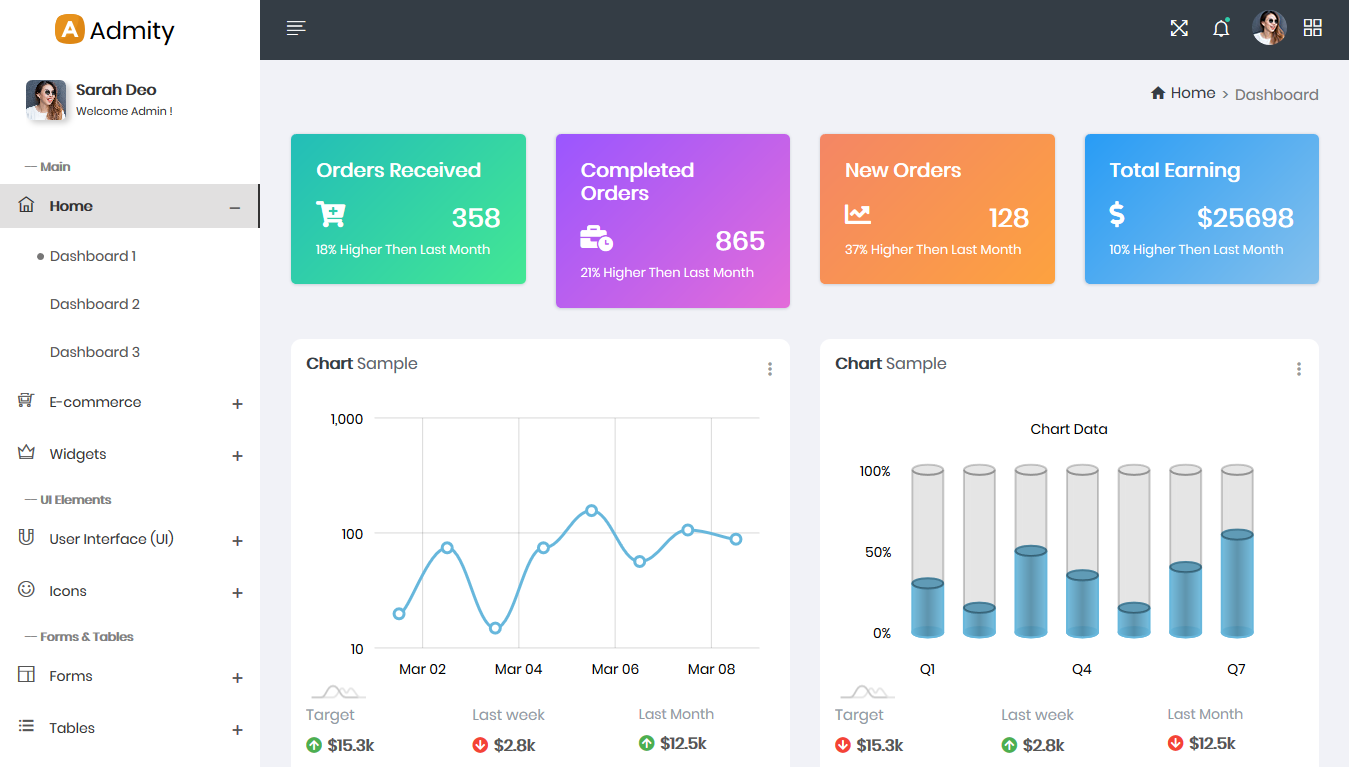
Beginning Of Page
Below code is used at the beginning of all HTML pages.
 <head>
 <meta charset="UTF-8">
 <meta http-equiv="X-UA-Compatible" content="IE=Edge">
 <meta content="width=device-width, initial-scale=1, maximum-scale=1, user-scalable=no" name="viewport">
 <title>Atrio - Bootstrap 4 Admin Dashboard Template</title>
 <!-- Favicon-->
 <link rel="icon" href="assets/images/favicon.ico" type="image/x-icon">

 <!-- Plugins Core Css -->
 <link href="assets/css/app.min.css" rel="stylesheet">

 <!-- Custom Css -->
 <link href="assets/css/style.css" rel="stylesheet" />

 <!-- Theme style. You can choose a theme from css/themes instead of get all themes -->
 <link href="assets/css/styles/all-themes.css" rel="stylesheet" />
 </head>
Header
Below code is used at header in every html pages.
 <!-- Top Bar -->
  <nav class="navbar">
        <div class="container-fluid">
            <div class="navbar-header">
                <a href="#" onClick="return false;" class="navbar-toggle collapsed" data-toggle="collapse" data-target="#navbar-collapse"
                    aria-expanded="false"></a>
                <a href="#" onClick="return false;" class="bars"></a>
                <a class="navbar-brand" href="index.html">
                    <img src="assets/images/logo.png" alt="" />
                    <span class="logo-name">Atrio</span>
                </a>
            </div>
            <div class="collapse navbar-collapse" id="navbar-collapse">
                <ul class="nav navbar-nav navbar-left">
                    <li>
                        <a href="#" onClick="return false;" class="sidemenu-collapse">
                            <i class="nav-hdr-btn ti-align-left"></i>
                        </a>
                    </li>
                </ul>
                <ul class="nav navbar-nav navbar-right">
                    <!-- Full Screen Button -->
                    <li class="fullscreen">
                        <a href="javascript:;" class="fullscreen-btn">
                            <i class="nav-hdr-btn ti-fullscreen"></i>
                        </a>
                    </li>
                    <!-- #END# Full Screen Button -->
                    <!-- #START# Notifications-->
                    <li class="dropdown">
                        <a href="#" onClick="return false;" class="dropdown-toggle" data-toggle="dropdown" role="button">
                            <i class="nav-hdr-btn ti-bell"></i>
                       		<span class="notify"></span>
                            <span class="heartbeat"></span>
                        </a>
                        <ul class="dropdown-menu pullDown">
                            <li class="header">NOTIFICATIONS</li>
                            <li class="body">
                                <ul class="menu">
                                    <li>
                                        ....
                                    </li>
                                    <li>
                                       ....
                                    </li>
                                </ul>
                            </li>
                            <li class="footer">
                                <a href="#" onClick="return false;">View All Notifications</a>
                            </li>
                        </ul>
                    </li>
                    <!-- #END# Notifications-->
                    <li class="dropdown user_profile">
                        <div class="dropdown-toggle" data-toggle="dropdown">
                            <img src="assets/images/user.jpg" alt="user">
                        </div>
                        <ul class="dropdown-menu pullDown">
                            <li class="body">
                                <ul class="user_dw_menu">
                                    <li>
                                        ....
                                    </li>
                                </ul>
                            </li>
                        </ul>
                    </li>
                    <!-- #END# Tasks -->
                    <li class="pull-right">
                        <a href="#" onClick="return false;" class="js-right-sidebar" data-close="true">
                            <i class="nav-hdr-btn ti-layout-grid2"></i>
                        </a>
                    </li>
                </ul>
            </div>
        </div>
    </nav>
  <!-- #Top Bar -->
Left Sidebar
Below code is used for left sidebar menu.
<aside id="leftsidebar" class="sidebar">
            <!-- Menu -->
            <div class="menu">
                <ul class="list">
                    <li>
                        <div class="sidebar-profile clearfix">
                            <div class="profile-img">
                                <img src="assets/images/usrbig.jpg" alt="profile">
                            </div>
                            <div class="profile-info">
                                <h3>Sarah Deo</h3>
                                <p>Welcome Admin !</p>
                            </div>
                        </div>
                    </li>
                    <li class="header">-- Main</li>
                    <li class="active">
                        <a href="#" onClick="return false;" class="menu-toggle">
                            <i class="menu-icon ti-home"></i>
                            <span>Home</span>
                        </a>
                        <ul class="ml-menu">
                            <li class="active">
                                <a href="index.html">Dashboard 1</a>
                            </li>
                            <li>
                                <a href="pages/dashboard/dashboard2.html">Dashboard 2</a>
                            </li>
                            <li>
                                <a href="pages/dashboard/dashboard3.html">Dashboard 3</a>
                            </li>
                        </ul>
                    </li>
                    <li>
                        ....
                    </li>
                    <li>
                        ....
                    </li>
                    <li class="header">-- UI Elements</li>
                    <li>
                        ....
                    </li>

                </ul>
            </div>
            <!-- #Menu -->
        </aside>
Right Sidebar
Below code is used for develop right sidebar panel.
<!-- Right Sidebar -->
 <aside id="rightsidebar" class="right-sidebar">
            <ul class="nav nav-tabs tab-nav-right" role="tablist">
                <li role="presentation">
                    <a href="#skins" data-toggle="tab" class="active">SKINS</a>
                </li>
                <li role="presentation">
                    <a href="#settings" data-toggle="tab">SETTINGS</a>
                </li>
            </ul>
            <div class="tab-content">
                <div role="tabpanel" class="tab-pane in active in active stretchLeft" id="skins">
                    <div class="demo-skin">
                        <div class="rightSetting">
                            <p>GENERAL SETTINGS</p>
                            <ul class="setting-list list-unstyled m-t-20">
                                <li>
                                    <div class="form-check">
                                        <div class="form-check m-l-10">
                                            <label class="form-check-label">
                                                <input class="form-check-input" type="checkbox" value="" checked> Save
                                                History
                                                <span class="form-check-sign">
                                                    <span class="check"></span>
                                                </span>
                                            </label>
                                        </div>
                                    </div>
                                </li>
                                <li>
                                   ....
                                </li>
                                <li>
                                    ....
                                </li>
                                .
                            </ul>
                        </div>
                        <div class="rightSetting">
                            <p>SKINS</p>
                            <ul class="demo-choose-skin choose-theme list-unstyled">
                                <li data-theme="black" class="actived">
                                    <div class="black-theme"></div>
                                </li>
                                <li data-theme="white">
                                    ...
                                </li>
                            </ul>
                        </div>
                        <div class="rightSetting">
                            <p>Disk Space</p>
                            <div class="sidebar-progress">
                                <div class="progress m-t-20">
                                    <div class="progress-bar l-bg-cyan shadow-style width-per-45" role="progressbar"
                                        aria-valuenow="45" aria-valuemin="0" aria-valuemax="100"></div>
                                </div>
                                <span class="progress-description">
                                    <small>26% remaining</small>
                                </span>
                            </div>
                        </div>
                        <div class="rightSetting m-b-15">
                            <p>Server Load</p>
                            <div class="sidebar-progress">
                                ...
                            </div>
                        </div>
                    </div>
                </div>
                <div role="tabpanel" class="tab-pane stretchRight" id="settings">
                    <div class="demo-settings">
                        <p>GENERAL SETTINGS</p>
                        <ul class="setting-list">
                            <li>
                                ....
                            </li>
                            <li>
                                ....
                            </li>
                        </ul>
                        <p>SYSTEM SETTINGS</p>
                        <ul class="setting-list">
                            <li>
                                ....
                            </li>
                            <li>
                                ...
                            </li>
                        </ul>
                        <p>ACCOUNT SETTINGS</p>
                        <ul class="setting-list">
                            <li>
                                ....
                            </li>
                        </ul>
                    </div>
                </div>
            </div>
        </aside>
 <!-- #END# Right Sidebar -->
Theme Setting
1. Main Theme Setting
All theme related css files are place in css/styles directory. By default all-themes.css file is include in html pages.
Please refer following table for setting theme.
| Include Theme Css | Instructions |
|---|---|
theme-black.css |
For use black theme add .theme-black class in body
tag. |
theme-blue.css |
For use blue theme add .theme-blue class in body
tag. |
theme-cyan.css |
For use cyan theme add .theme-cyan class in body
tag. |
theme-green.css |
For use green theme add .theme-green class in body
tag. |
theme-orange.css |
For use orange theme add .theme-orange class in body
tag. |
theme-purple.css |
For use purple theme add .theme-purple class in body
tag. |
theme-white.css |
For use white theme add .theme-white class in body
tag. |
2. Sidebar Color
For set light sidebar color you need to add class .menu-light, for set dark sidebar add .menu-dark
class in body tag.
Utilities
Utilities classes are very reusable classes with a single purpose to reduce the frequency of highly repetitive declarations.
| Class | Description | Value |
|---|---|---|
.m-l- |
Margin left | 0|5|10|15|20|25 |
.m-r- |
Margin Right | 0|5|10|15|20|25 |
.m-t- |
Margin Top | 0|5|10|15|20|25 |
.m-b- |
Margin Bottom | 0|5|10|15|20|25 |
.p-l- |
Padding Left | 0|5|10|15|20|25 |
.p-r- |
Padding Right | 0|5|10|15|20|25 |
.p-t- |
Padding Top | 0|5|10|15|20|25 |
.p-b- |
Padding Bottom | 0|5|10|15|20|25 |
.margin- |
Margin | 0|5|10|15|20|25 |
.padding- |
Padding | 0|5|10|15|20|25 |
.font- |
Font Size | 5 To 49 |
.bg- |
Background Color | red|pink|purple|deep-purple|indigo|blue|light-blue|cyan|teal|green|light-green|lime|yellow|amber|orange|deep-orange|brown|grey|blue-grey|black|white|dark-gray |
.l-bg-- |
Linear Background Color | green|orange|cyan|red|purple|purple-dark |
.col- |
Set Font Color | red|pink|purple|deep-purple|indigo|blue|light-blue|cyan|teal|green|light-green|lime|yellow|amber|orange|deep-orange|brown|grey|blue-grey|black|white|dark-gray |
New Page
To create a new page, you can use blank.html page, which provides basic page layout which you can extend and modify further.
Credits
Below is the list of all plugins and external resources used to power this template.
Changelog
- Initial released
Support
Once again thank you for purchasing the theme. I am always available to help you.
If you have any type of query or support needed, feel free to contact us by mail or message to redstartheme@gmail.com